2.4: Checking FROST Signatures
If you receive a FROST signature, obviously you must be able to check it!
:book: What is Required to Verify a Signature? Verification of a signature can typically be accomplished with three items: the message, the signature, and the public key (which is typically called the "verifying key" in relation to FROST).
Following are some methodologies for verifying the ed25519 signature you created in §2,3.
:warning: WARNING: There are some issues with the canonicity of some edge-case ed25519 signatures as described here. ZF FROST and the verification tools described here seem to be in alignment. ZIP-215 seeks to resolve these issues and hopefully will be a touchstone for future ed25519 libraries.
Verifying on the Command Line
Blockchain Commons has written
frost-verify,
a Rust tool designed to verify ed25519 and secp256k1-tr FROST
signatures.
You can download and install frost-verify as follows:
git clone https://github.com/BlockchainCommons/frost-verify-rust.git
cd frost-verify-rust
cargo install --path .
Verifying a signature require three elements: the message that was
signed; the public (verifying) key; and the signature. The trickiest
thing is often knowing what format is expected for each of these
files. Here's what you need when you use frost-verify:
- Message: The original (txt) message.
- Verifying Key: The
public-key-package.jsonfile generated by the ZF FROST Tools - Signature: A binary version of the signature, which is the format generated by the ZF FROST Tool.
With those in hand, you can use the frost-verify tool to verify your
signature. The following flags can be used with frost-verify verify:
| Flag | Description | Default | Options |
|---|---|---|---|
| -c | Ciphersuite | ed25519 | redpallas |
| -C | Credentials | ||
| -m | Message | ||
| -P | Public Key Filename | public-key-package.json | |
| -q | Quiet Mode | ||
| -s | Signature Input File |
Here's how to verify the ed25519 signature you created in
§2.3: Creating a FROST Signature.
% frost-verify verify -m board-meeting-250917.txt -s board-meeting-250917.sig -P public-key-package.json
✅ Signature verification: PASSED
If the test were not successful, you would instead see:
❌ Signature verification: FAILED
:book: Is It Verify or Validate? RFC 4949 suggests that validate should refer to correctness and verify should refer to truth. These are also the most common definitions in the cryptographic world, so you verify a signature to see that it's authentic, though you might validate that it's the right format, the right length, etc.
Creating a Signature for Testing
The frost-verify program also allows for the creation of a test
signature. All you need is the file to sign and frost-verify
test-sign will create the signing shares, sign, and record the
verifying key. The same flags are used as with the frost-verify
verify command:
 % frost-verify test-sign -m board-meeting-250917.txt -s board-meeting-250917.sig
✅ Test signature and public key package generated:
  Signature: board-meeting-250917.sig
  Public key package: public-key-package.json
Afterward, you can verify as usual:
% frost-verify verify -m board-meeting-250917.txt -s board-meeting-250917.sig -P public-key-package.json
This is primarily useful for testing that the tool is working if you're having troubles verifying signatures that you made via other means.
Verifying on the Web
The website cyphr.me offers a more general method for verifying ed25519 signatures, such as the one you created in this chapter.
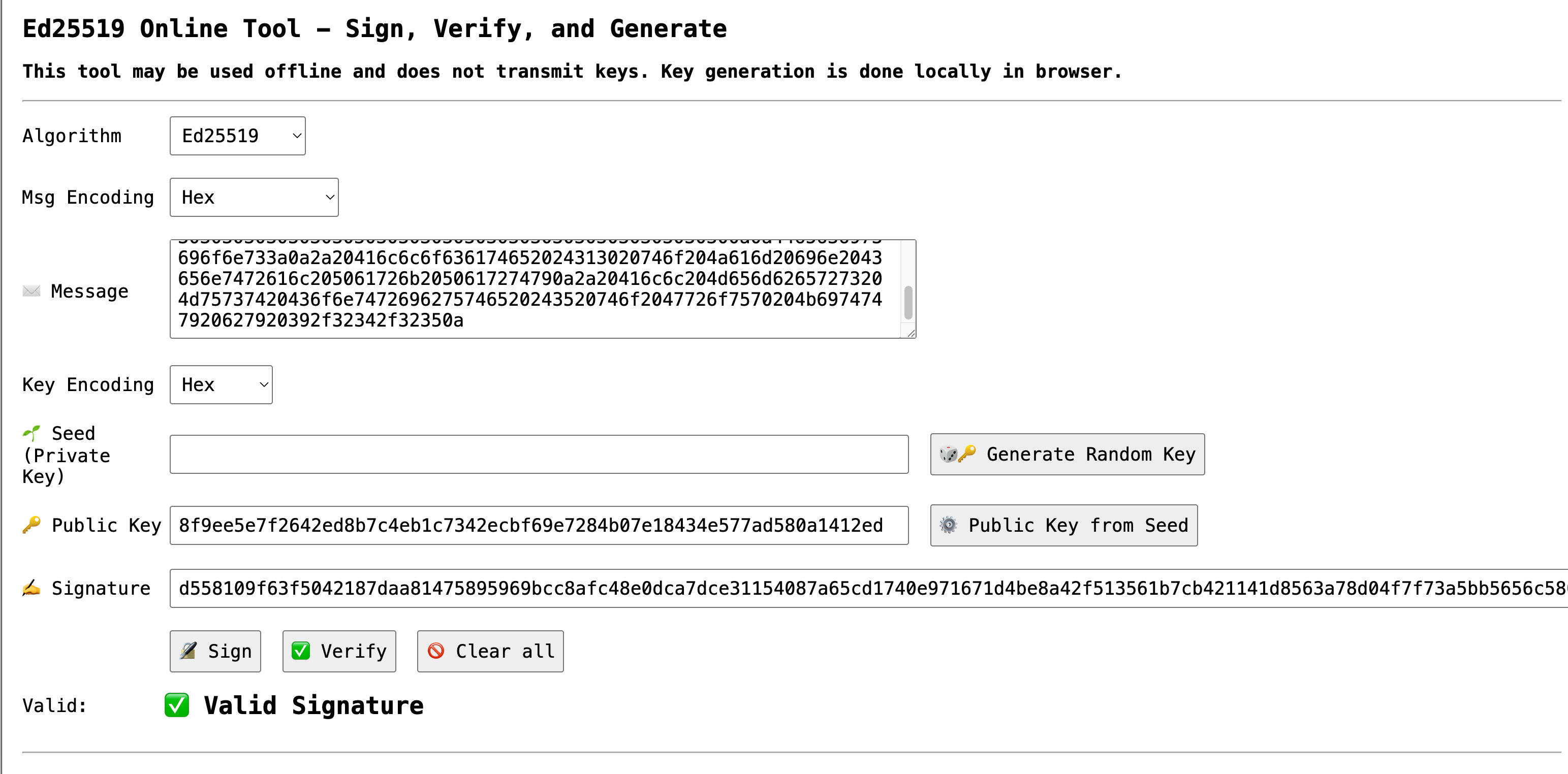
To use it:
- Choose the Algorithm as "ed25519"
- Choose Message Encoding as "hex"
- Paste the hex-encoded version of
board-meeting-250917.txt(or any other message converted to hex) as "Message", e.g.:446174653a20392f31372f32350a50726573656e743a20303130303030303030303030303030303030303030303030303030303030303030303030303030303030303030303030303030303030303030303030303030302c20303230303030303030303030303030303030303030303030303030303030303030303030303030303030303030303030303030303030303030303030303030300a0a4465636973696f6e733a0a2a20416c6c6f636174652024313020746f204a616d20696e2043656e7472616c205061726b2050617274790a2a20416c6c204d656d62657273204d75737420436f6e7472696275746520243520746f2047726f7570204b6974747920627920392f32342f32350a - Choose "Key Encoding" as "hex"
- Leave "Seed" blank.
- Paste the
verifying_keyfrompublic-key-package.jsonas the "Public Key", e.g.8f9ee5e7f2642ed8b7c4eb1c7342ecbf69e7284b07e18434e577ad580a1412ed. - Convert the binary signature in
board-meeting-250917.sig(or any other signature file) to hex withxxd -p -c0 board-meeting-250917.sig, then paste that into "Signature", e.g.:d558109f63f5042187daa81475895969bcc8afc48e0dca7dce31154087a65cd1740e971671d4be8a42f513561b7cb421141d8563a78d04f7f73a5bb5656c5800. - Click "Verify".
- You should see "Valid Signature".
Verifying with Code
The ZF FROST Book notes that if you use the ZF FROST crates, you can simply verify a signature with the following code:
let is_signature_valid = pubkey_package
    .verifying_key()
    .verify(message, &group_signature)
    .is_ok();
The ed25519_zebra crate offers a similar solution:
assert!(
    VerificationKey::try_from(vk_bytes)
        .and_then(|vk| vk.verify(&sig_bytes.into(), msg))
        .is_ok()
);
Either code base could be used to quickly develop a verification tool of your own.
Summary: Checking FROST Signatures
You've now experienced the basics of FROST hands-on. You created a FROST group in §2.2, created a FROST signature in §2.3, and verified a FROST signature here.
You should have a good understanding of:
- What an m-of-n FROST group is.
- How signatures are created in two rounds, with commitments, then signatures, followed by aggregation.
- How you can use a message, signature, and verifying (public) key to verify a signature.
That's the basics!
What's Next
Chapter 3: Advanced FROST Capabilities talks about some advanced features of FROST, some of which are fully supported by the modern CLI, some of which are not.